Connect an AI assistant to AI Calendar
AI Calendar speaks MCP, the open standard AI assistants use to work with other apps. Connect yours once and it can read the family calendar, add events and to-dos, and read bookings out of emails and photos you hand it, as you, with the cards waiting for you to confirm.
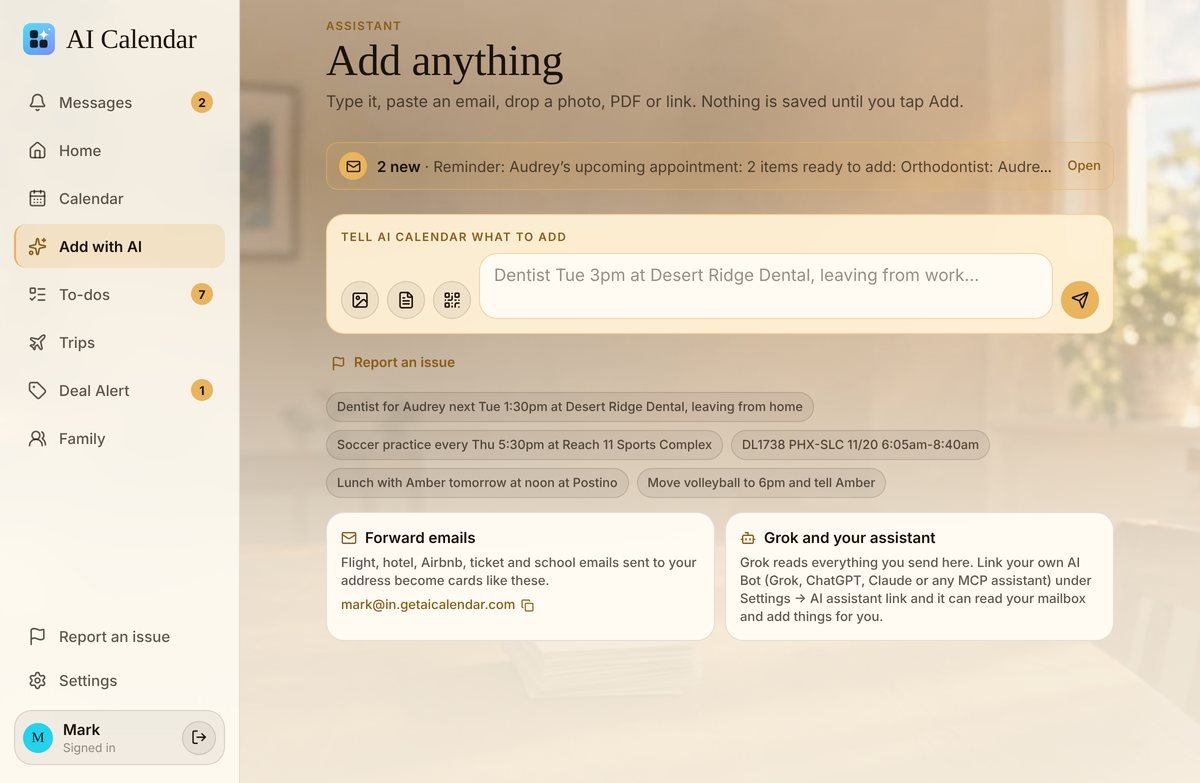
From an assistant's directory (sign in and allow)
In Claude, ChatGPT and other assistants with a connector directory, find AI Calendar, choose Connect, and you land on a getaicalendar.com page that asks you to sign in (if you aren't already) and to allow the assistant: read only, or read and write. That's it; the assistant connects on its own, no key to copy.
Not in the directory yet? Add it as a custom connector with this address, and the same sign-in page opens:
https://mcp.getaicalendar.comUnder the hood this is OAuth 2.1 with PKCE and dynamic client registration; the discovery documents live on the same host, at https://mcp.getaicalendar.com/.well-known/oauth-protected-resource and https://mcp.getaicalendar.com/.well-known/oauth-authorization-server, and the endpoint's 401 answer points to them. A connector set up earlier with the older address (…supabase.co/functions/v1/mcp) keeps working.
With a key (Grok, Gemini, Cursor, VS Code, custom GPTs and other tools)
- Open Settings → AI assistant link, name the assistant, and choose read only or read and add.
- Copy the key (it is shown once) or the ready-made connector link.
- In the assistant, add an MCP server with the address above and the header
Authorization: Bearer <your key>, or paste the connector link where it only takes a URL.
What a connected assistant can do
| Read only | Read and write (adds) |
|---|---|
| Today, the week, any date range; one event in full | Create, move and cancel events |
| Trips, who is traveling where, conflicts, miles flown | Add and tick off to-dos |
| To-dos; changes since a time (to stay in sync) | Read a confirmation email, a flyer or a PDF into cards that wait for you to confirm |
| The family briefing: who's who, the time zone, the house rules |
Every tool says whether it only reads, so an assistant can show you what it is about to do. Nothing an assistant adds goes on the calendar behind your back: bookings it reads out of emails land as cards for you to confirm, and plain events carry who added them.
Privacy and disconnecting
- The assistant acts as the person who connected it, with that person's own permissions; a child's account can't connect one.
- It never sees your password. A key or an OAuth token can be revoked any time under Settings → AI assistant link; revoking it ends the assistant's access at once.
- What assistants send and receive is logged for 30 days for troubleshooting, then deleted. See the privacy policy.
For developers and reviewers
Transport: streamable HTTP (JSON-RPC over POST, no event stream). Protocol version: current MCP. Auth: Authorization: Bearer with an OAuth access token or an aical_ key; a request without one answers 401 with a WWW-Authenticate challenge pointing at the resource metadata. Scopes: read, write. Support: support@getaicalendar.com.
Questions people ask
- Does the assistant get my password?
- No. With sign-in-and-allow, you sign in on getaicalendar.com and the assistant only receives a token for the access you allowed. With a key, it only ever holds the key.
- Can I limit it to reading?
- Yes. Pick "Read only" on the allow page, or make a read-only key. A read-only connection cannot add, move or cancel anything.
- How do I disconnect it?
- Settings → AI assistant link lists every connected assistant and key with a Disconnect or Revoke button. The assistant loses access immediately.
- Is linking an assistant available on the Free plan?
- No. Linking your own AI assistant (Claude, ChatGPT, Gemini, Grok or any other MCP tool) comes with the Individual and Household plans. Free includes three AI imports a month inside the app. If a plan lapses, the link stops working until you renew.
- Which assistants work?
- Anything that supports MCP: Claude (web, desktop, mobile and Code), ChatGPT and custom GPTs, Gemini, Grok and Grok Bot, Cursor, VS Code, and any other AI tool that supports MCP. Directory listings come as each platform approves them.